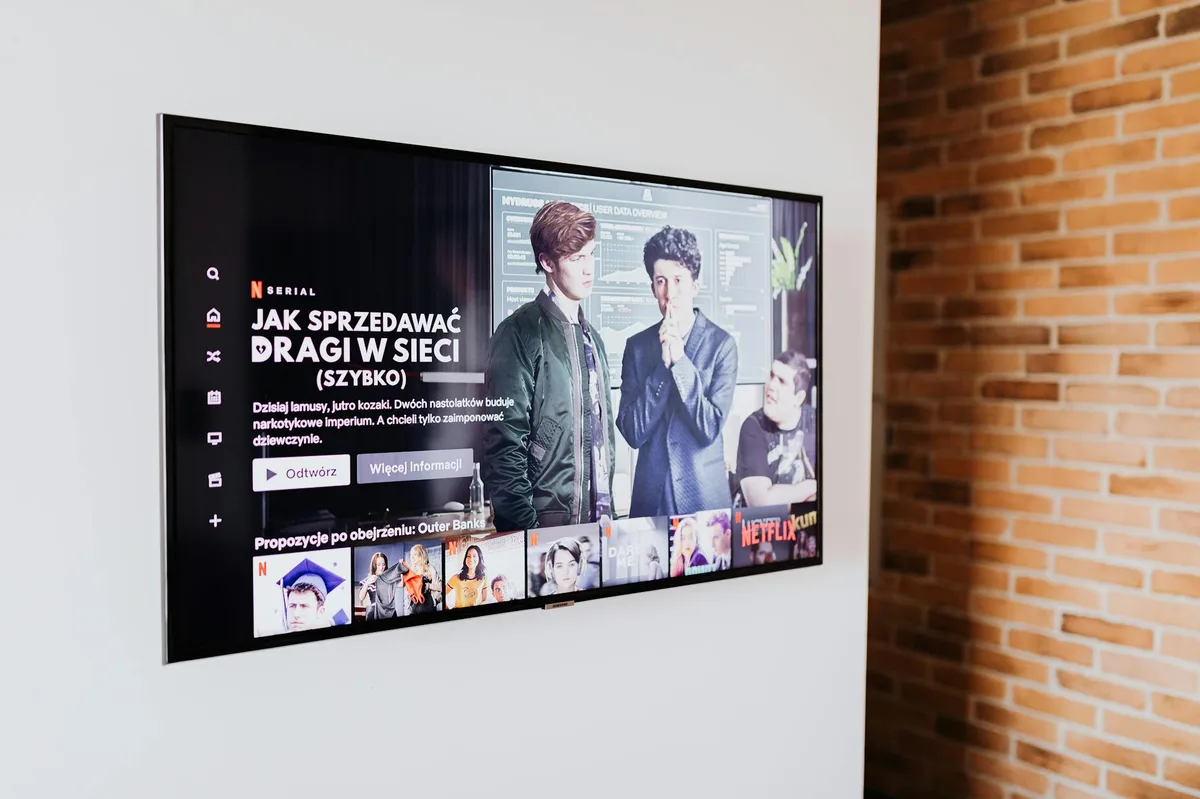
Smart TV IPTV setup varies by platform. Android TV is the most flexible — you can install any APK and use premium apps like TiviMate directly from the Play Store. Samsung Tizen and LG WebOS have fewer native options but work well with apps like Smart IPTV or SS IPTV. Roku has the most limited support of the major platforms.
Your smart TV might be the most convenient IPTV player you own — no extra hardware, no remote juggling. But the experience varies dramatically depending on which operating system your TV runs. A Samsung, LG, Android TV, and Roku all behave like completely different devices when it comes to IPTV compatibility.
This guide walks through each major smart TV platform in detail: which apps are available, how to load your M3U playlist, and what workarounds exist when the native options fall short. Whether your TV is brand new or a few years old, there is a workable approach for most setups.
Which Smart TV Platform Do You Have?
Before diving into setup steps, it helps to identify your TV's operating system. Flip the remote over and look at the brand, or navigate to Settings > About on your TV. The four major platforms you are likely dealing with are:
- Android TV / Google TV — common on Sony, Hisense, TCL, Philips, and Nvidia Shield TV
- Samsung Tizen — all Samsung Smart TVs from 2015 onward
- LG WebOS — all LG Smart TVs from 2014 onward
- Roku TV — built into select TCL, Hisense, and Insignia models; also a standalone streaming stick
Here is how the platforms compare at a glance:
| Platform | Built-in App Store | Sideload Support | Best IPTV App | Difficulty |
|---|---|---|---|---|
| Android TV / Google TV | Yes | Yes | TiviMate | Easy |
| Samsung Tizen | Yes | No | Smart IPTV | Moderate |
| LG WebOS | Yes | Limited | SS IPTV | Moderate |
| Roku | Yes | No | Channels app | Limited |
IPTV on Android TV / Google TV
Android TV is the gold standard for IPTV on a smart television. It runs a full version of the Android operating system, which means you get access to the Google Play Store, support for APK sideloading, and compatibility with virtually every IPTV app on the market. If your TV runs Android TV or Google TV, setup is straightforward and identical to configuring an Android phone or tablet.
The two most popular options from the Play Store are TiviMate and IPTV Smarters. TiviMate is widely regarded as the best IPTV player available on any platform — it has a polished interface, excellent EPG support, multi-screen viewing, and recording capabilities with a one-time companion pass purchase. IPTV Smarters is a solid free alternative with Xtream Codes support built in.
Most M3U-based providers work seamlessly with Android TV. This US-based IPTV service provides credentials in both M3U and Xtream Codes format, compatible with TiviMate and every app listed here. Their streams are stable on both Android TV and Google TV without any additional configuration.
For a broader comparison of player apps across all devices, see our best IPTV players guide.
Installing TiviMate on Android TV
TiviMate is available directly from the Google Play Store on any Android TV or Google TV device. Here is the full setup sequence:
- Open the Google Play Store Navigate to the Play Store app from your Android TV home screen or app drawer.
- Search for TiviMate Use the search bar and type "TiviMate." The app is published by Artem Kolganov. Select it from the results.
- Install the app Press Install and wait for the download to complete. The free version is fully functional for loading playlists.
- Open TiviMate and start setup Launch TiviMate from your apps. On first launch, it will prompt you to add a playlist.
- Select "Add Playlist" Choose "M3U Playlist" from the playlist type options. If your provider gave you Xtream Codes credentials, choose that option instead.
- Enter your M3U URL Paste or type the M3U URL provided by your IPTV service. TiviMate will download the playlist and populate your channel list automatically.
- Configure EPG (optional) If your provider supplies an EPG URL (XMLTV format), go to Settings > EPG and add it for a full on-screen program guide.
Sideloading APKs on Android TV
One of Android TV's biggest advantages is APK sideloading — installing apps that aren't listed in the Play Store. This opens access to apps like Tivimate Companion, or older versions of apps that have been removed. The process is straightforward:
- Install ES File Explorer or Downloader from the Play Store — both are free and widely used for this purpose.
- Open the app and navigate to the direct APK download URL for the app you want to install.
- Download the APK file to your TV's local storage.
- When prompted, allow installation from unknown sources (you'll find this setting under Settings > Security on most Android TV builds).
- Open the downloaded APK and confirm the installation.
IPTV on Samsung Smart TV (Tizen OS)
Samsung's Tizen operating system is a proprietary platform with no support for Android APKs. You cannot sideload apps the way you can on Android TV — every app must come through the Samsung App Store (formerly called the Samsung Smart Hub). The good news is that two well-established IPTV apps are listed there and work reliably with any standard M3U or Xtream provider.
For detailed platform-specific configuration, IPTV US also publishes a guide on loading M3U playlists across different devices, including Samsung TVs.
Smart IPTV App
Smart IPTV (sometimes written as SIPTV) is the most popular dedicated IPTV app available on Samsung's platform. It has been around since the early days of smart TV app development and supports M3U playlists, Xtream Codes, and EPG via XMLTV.
The app costs approximately $5.49 as a one-time purchase — a reasonable price given it covers all your Samsung TVs permanently. Here is how to set it up:
- Download Smart IPTV from the Samsung App Store Press the Smart Hub button on your remote, navigate to Apps, and search for "Smart IPTV." Install the app.
- Note your TV's MAC address When you open Smart IPTV for the first time, it displays your TV's MAC address on screen. Write it down — you'll need it in the next step.
- Visit siptv.eu on a computer or phone Open a browser and go to siptv.eu. Enter your TV's MAC address in the provided field.
- Add your M3U URL Paste your M3U playlist URL into the playlist field on the siptv.eu website and save. The site links your URL to your TV's MAC address.
- Reload Smart IPTV on your TV Return to the app on your Samsung TV and reload or restart it. The playlist should now load and populate your channel list automatically.
SS IPTV (Free Alternative)
SS IPTV is a free IPTV player available in the Samsung App Store with broader model compatibility than Smart IPTV. The setup process is self-contained — no external website registration required:
- Open the Samsung App Store and search for "SS IPTV." Install the app.
- Launch SS IPTV and navigate to Settings > Playlist.
- Select "Add Playlist" and choose between M3U URL or Xtream Codes depending on what your provider supplies.
- Enter your M3U URL or Xtream credentials and save. The channel list will populate within a few seconds.
SS IPTV also supports multiple playlists, EPG overlays, and has an active development team. For most Samsung TV users, it is the most straightforward path to getting IPTV running.
IPTV on LG Smart TV (WebOS)
LG's WebOS platform sits between Samsung Tizen and Android TV in terms of IPTV flexibility. The LG Content Store offers a modest but functional selection of apps, and for more technically inclined users, WebOS includes a developer mode that enables limited sideloading. The web browser built into WebOS also provides a useful fallback option.
SS IPTV on LG
SS IPTV is available in the LG Content Store and is the easiest path to IPTV on any LG WebOS television. The setup is similar to the Samsung version:
- Press the Home button on your LG remote and open the LG Content Store.
- Search for "SS IPTV" and install the app.
- Open SS IPTV and go to Settings > Playlist.
- Add your M3U URL or Xtream Codes credentials and save.
- Return to the main screen and your channels will be available for browsing.
The LG version of SS IPTV behaves identically to the Samsung version and is regularly updated. If SS IPTV isn't working as expected, check that your M3U URL is active and accessible — the app will display an error if the stream server is down or if the URL has expired.
Web Browser Method (Fallback)
WebOS includes a capable built-in web browser that some IPTV providers leverage for an alternative access method. A small number of providers offer a web player link — typically a URL that loads their channel grid inside a browser. If your provider supports this, you can simply open the LG browser, navigate to the web player URL, and watch directly without installing any app.
This method is less reliable than a dedicated app — browser-based players can struggle with HLS streams and often lack EPG integration. But it is a useful backup if the Content Store apps aren't working on your specific TV model.
Developer Mode Sideloading (Advanced)
WebOS does offer a path to sideloading apps through LG's developer program, but it requires technical knowledge and is not recommended for most users. The process involves:
- Creating a free developer account at the LG WebOS developer portal.
- Enabling Developer Mode on your TV via the LG Developer Mode App from the Content Store.
- Using the webOS CLI or Dev Manager desktop application to package and transfer IPK (the WebOS equivalent of APK) files.
In practice, the apps available through this route have limited IPTV functionality compared to Android TV options, and the developer mode session expires periodically requiring re-authorization. Most users are better served by SS IPTV from the Content Store or by adding an Android TV stick to their setup.
IPTV via Chromecast and Google TV Stick
The Chromecast with Google TV (the remote-equipped streaming dongle released in 2020 and updated since) runs full Android TV under the hood. Plug it into any TV's HDMI port and you effectively have an Android TV device — with the Play Store, APK sideloading, TiviMate support, and everything else described in the Android TV section above. This is an excellent and affordable solution if your existing TV runs Samsung Tizen, LG WebOS, or any other platform with limited native IPTV support.
Older Chromecast devices (Chromecast 1st, 2nd, 3rd generation, and Chromecast Ultra) work differently. They are "cast" devices only — they receive a stream projected from another device rather than running apps independently. To use IPTV with an older Chromecast, open IPTV Smarters or a similar app on your Android phone, start a stream, and tap the Cast icon to project it to your TV. Playback continues through the Chromecast, but you control it from the phone.
For most users, upgrading to a Chromecast with Google TV (or an Amazon Fire TV Stick) is the simplest way to unlock full IPTV capabilities on any TV, regardless of what operating system the TV itself runs. See our dedicated IPTV on Fire Stick guide for the Amazon side of that comparison.
Loading Your M3U Playlist on a Smart TV
Regardless of which smart TV platform you're using, the M3U playlist URL is the key piece of information you need before starting setup. Your IPTV provider will send this URL — usually via email — when you activate a subscription or trial. It looks something like:
http://provider-server.com:8080/get.php?username=YOURUSER&password=YOURPASS&type=m3u_plus&output=ts
Here are a few practical tips for getting that URL onto your TV without frustration:
- Email the URL to yourself. Open your TV's built-in browser, log into your email, and copy the URL directly. This avoids the painful process of typing a long URL with a TV remote.
- Use a URL shortener. Services like TinyURL let you create a short alias for your M3U link that is much easier to enter on a remote-controlled keyboard.
- Check for a Xtream Codes option. Many providers offer both M3U URLs and Xtream Codes credentials (a separate username, password, and server URL). Apps like TiviMate and SS IPTV support both, and Xtream Codes are sometimes easier to enter manually.
- Bookmark the URL in your TV browser. If your smart TV has a browser, navigate to the URL once and bookmark it so you can retrieve it later without retyping.
For a full guide on M3U format and how URLs are structured, see our M3U playlist guide. It covers how playlist files are constructed, how to add or filter channels manually, and how to troubleshoot common loading errors.
If you are still in the process of selecting a provider, our IPTV on Android guide covers how to test a new service on your phone before committing to a full TV setup — a useful step that can save time if a provider turns out to be unreliable.
Frequently Asked Questions
Yes. Samsung Smart TVs running Tizen OS can run IPTV apps directly from the Samsung App Store. Smart IPTV and SS IPTV are both available and let you load an M3U playlist URL without any additional hardware. No Fire Stick required. The setup takes about 10 minutes once you have your M3U URL ready.
TiviMate is an Android app and is only available through the Google Play Store. Samsung TVs run Tizen OS, which is a completely separate platform and cannot install Android apps. For Samsung TVs, use Smart IPTV or SS IPTV instead. TiviMate is available on Android TV, Google TV, Amazon Fire TV, and Android phones and tablets — so if you want TiviMate specifically, adding a Chromecast with Google TV or Fire TV Stick to your Samsung TV is the simplest path.
Android TV and Google TV are the best smart TV operating systems for IPTV. They give you full access to the Google Play Store, support APK sideloading, and are compatible with top-tier apps like TiviMate and IPTV Smarters. Samsung Tizen and LG WebOS are more restrictive but still workable through dedicated store apps like Smart IPTV and SS IPTV. Roku has the most limited IPTV support and should generally be avoided if IPTV is a priority for you.
Yes. The easiest approach is to plug in an Amazon Fire TV Stick or a Chromecast with Google TV into your TV's HDMI port. Both devices turn any TV with an HDMI input into a smart TV capable of running IPTV apps. An Android TV box is another option and often provides more processing power for smoother 4K playback. Any of these devices will give you more IPTV flexibility than most built-in smart TV platforms.
Choosing the Right Approach
The table at the top of this guide tells most of the story: if you have flexibility in your setup, an Android TV device — whether built into your TV or added as an external stick — is the easiest and most capable IPTV platform available. TiviMate on Android TV is genuinely excellent, and the combination of Play Store access and APK sideloading means you are never limited by what a manufacturer decided to list in their app store.
If you're locked into Samsung Tizen or LG WebOS, both platforms are workable. SS IPTV covers both and is the safest recommendation given its wide model compatibility and free pricing. Smart IPTV is a worthwhile one-time purchase if you prefer a more feature-rich interface on Samsung.
Whichever route you choose, the steps are the same at the end: get your M3U URL or Xtream Codes credentials from your provider, enter them into the app, and give it a moment to load your channels. Most people are watching within 15 minutes of starting.