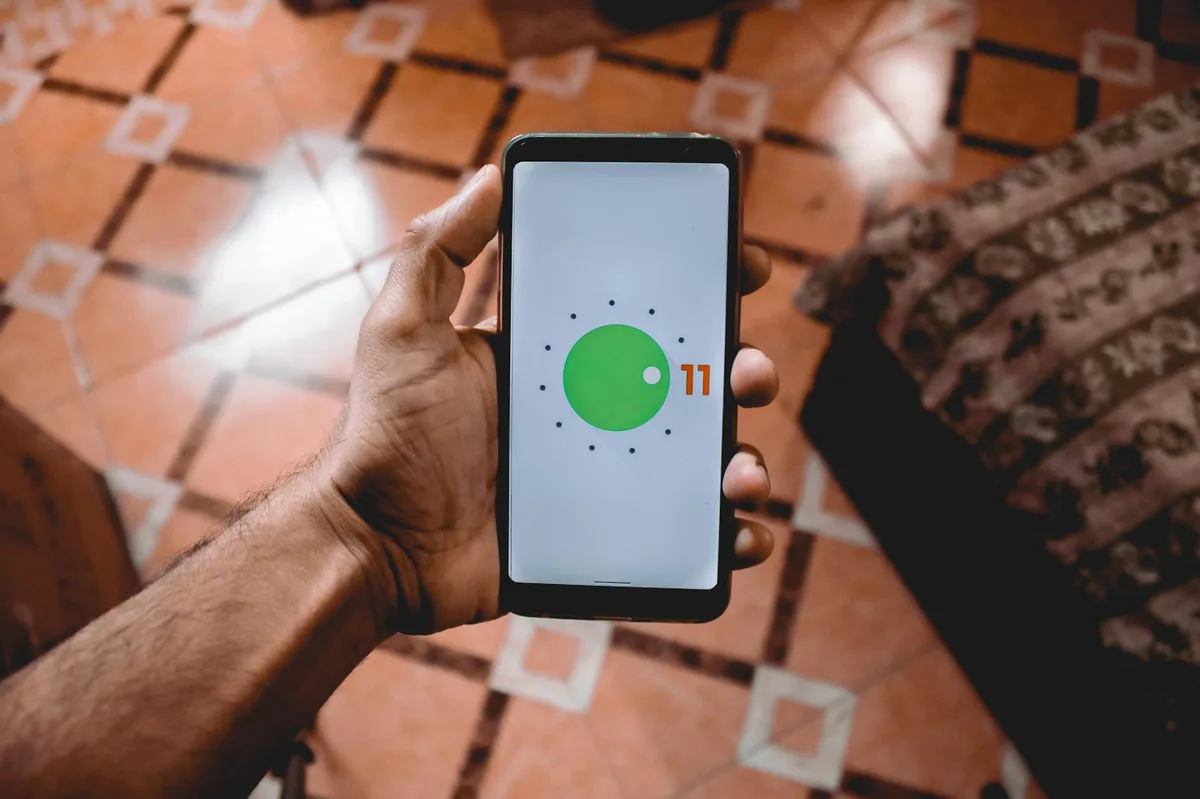
IPTV Smarters Pro and TiviMate are the top picks for Android phones and tablets. Smarters has a cleaner interface on small screens; TiviMate shines on tablets connected to larger displays.
Android holds a unique position in the IPTV ecosystem. Unlike Apple's iOS or Amazon's Fire OS, Android gives you a genuinely open platform — you can install apps from the Play Store, sideload APKs directly, and configure virtually every aspect of your streaming setup. The result is that Android phones and tablets offer the widest app selection of any mobile platform, and most IPTV developers build for Android first.
This guide covers the five best IPTV apps for Android in 2026, a step-by-step install walkthrough for the top pick, performance tuning advice, and a comparison between Android phones and Fire Stick for those deciding which device to use. Whether you're streaming on a budget handset or a flagship tablet, there's a solid option here for you.
Why Android Is the Best Mobile Platform for IPTV
Android's open ecosystem is the single biggest reason it dominates IPTV on mobile. On iOS, every app must pass Apple's App Store review process — and many IPTV apps that aggregate third-party streams have historically been rejected or removed. On Android, if an app isn't on the Play Store, you can still install it via APK sideloading with a single settings toggle. That flexibility matters enormously in a space where apps evolve quickly.
Google Play access adds a layer of convenience that shouldn't be understated. IPTV Smarters Pro, TiviMate, Televizo, and Perfect Player are all available directly from the Play Store on Android — no sideloading, no developer menus, no risk of unsigned packages. iOS users frequently have to jump through hoops to get the same apps running.
The device range is equally compelling. Android runs on everything from sub-$100 budget phones to flagship tablets with 12-inch OLED displays. This means you can match your IPTV setup to your actual budget — a mid-range phone from any major manufacturer will handle 1080p IPTV streams without breaking a sweat, and a modern flagship tablet with a large screen can genuinely rival a budget streaming box for home use.
Most importantly, IPTV apps are Android-native by design. The vast majority of serious IPTV player developers built their apps for Android first and ported to other platforms later (or never). That means better optimization, faster updates, more features, and fewer compatibility bugs compared to what you'd find on, say, an LG smart TV or a Samsung Tizen device.
Top Android IPTV Apps for 2026
The apps below were evaluated on setup simplicity, interface quality, EPG support, playlist handling, and playback performance across a range of Android devices. All five are actively maintained as of early 2026.
1. IPTV Smarters Pro — Best Overall for Phones
IPTV Smarters Pro, developed by WHMCS SMARTERS, is the most versatile IPTV app on Android and the easiest to recommend as a first install. It supports both M3U playlist URLs and Xtream Codes API credentials — the two most common formats used by IPTV providers — and the setup process is guided enough that complete beginners rarely get stuck.
The interface is designed with portrait-mode phone use in mind. Categories are clearly separated, the EPG loads quickly, and switching between Live TV, Movies, and Series sections is a single tap. Compared to more TV-optimized apps like TiviMate, Smarters feels genuinely at home on a 6-inch phone screen.
Available on: Google Play Store · Free base version / paid unlock for additional features
- No sideloading needed — directly on Play Store
- Supports M3U URLs and Xtream Codes
- iOS version also available (rare for IPTV apps)
- Regular updates; active developer support
- Chromecast support built in
- Ads present in the free version
- Can slow down with very large playlists (10,000+ channels)
- UI feels slightly cluttered at default settings
2. TiviMate — Best for Tablets
TiviMate has built a devoted following among IPTV users, and for good reason: its EPG grid interface is the closest thing to a traditional cable TV guide experience available on any IPTV app. That grid layout, which shows multiple channels and time slots simultaneously, really comes into its own on a tablet with a 10-inch or larger screen.
Channel switching in TiviMate is noticeably smoother than competitors — the app pre-buffers the next channel and the transition feels nearly instant. Picture-in-Picture (PiP) mode works reliably, letting you continue watching while navigating the guide. If you're using a tablet as a secondary screen at home, TiviMate is the closest you'll get to a cable-box experience.
Available on: Google Play Store · Free version available; Premium unlocks multiple playlists and advanced features
- Butter-smooth channel switching with pre-buffering
- Best-in-class EPG grid interface
- PiP support works well on Android
- Premium is genuinely cheap (~$4.99/year)
- Highly customizable layout and player settings
- EPG grid is cramped on small phone screens
- Multiple playlists require the Premium tier
- Slightly steeper learning curve than Smarters
3. Televizo — Best Free Android Option
Televizo is the standout free option for Android users who want a no-cost IPTV experience without constant ad interruptions. The basic mode is genuinely ad-free, which is unusual in this space, and it handles M3U playlists reliably across providers.
EPG support is present but basic — it loads guide data and displays program titles, though it lacks the polished grid view of TiviMate. For first-time IPTV users who want to test the concept before paying for premium apps or committing to a long-term provider subscription, Televizo is an excellent starting point. There's nothing to lose, and the install-to-streaming time is minimal.
- Completely free with no ads in basic mode
- Easy M3U setup — no account required
- Lightweight and responsive on mid-range devices
- Good starting point for new IPTV users
- EPG is basic compared to paid alternatives
- Fewer customization options
- No Xtream Codes support in the free tier
4. Perfect Player IPTV
Perfect Player fills an important niche: older and budget Android devices that struggle with more resource-intensive apps. Its RAM footprint is minimal, and it maintains solid playback quality on hardware that would cause TiviMate or Smarters to stutter under load.
The app supports XMLTV format for EPG data and accepts multiple playlist formats including M3U and XSPF. The interface is functional rather than pretty — it's clearly designed by engineers for users who prioritize reliability over aesthetics. If you're repurposing an old Android phone or tablet as a dedicated IPTV viewer, Perfect Player is worth considering.
- Minimal RAM usage — great for older devices
- XMLTV EPG support
- Multiple playlist format support (M3U, XSPF)
- Stable and reliable playback
- Interface looks dated
- Setup is less guided than Smarters or TiviMate
- Less actively developed than competitors
5. MX Player Pro (with IPTV Playlist)
MX Player Pro is primarily a local video player, not a dedicated IPTV app — but it earns a place on this list for one specific use case: testing individual stream URLs and handling HEVC/H.265 content. Its hardware-accelerated decoder is among the most capable on Android, and streams that other apps struggle to play at high bitrates often work smoothly in MX Player Pro.
You can load M3U playlists into MX Player, but the experience is rudimentary compared to purpose-built IPTV apps. There's no EPG, no channel category browsing, and no Xtream Codes support. Use it as a diagnostic tool or for playing HEVC-encoded streams — not as your primary IPTV interface.
- Excellent HEVC/H.265 decoding capability
- Powerful hardware decoder handles high-bitrate streams
- Useful for testing individual stream links
- Not a dedicated IPTV app — no EPG or channel guide
- No Xtream Codes support
- Playlist navigation is primitive
For a broader comparison of these and other players across all device types, see our full best IPTV players for 2026 guide.
How to Install IPTV Smarters on Android
The following steps work on any Android phone or tablet running Android 5.0 or higher. You'll need an active IPTV subscription that provides either an M3U URL or Xtream Codes credentials before you begin. If you need help understanding M3U format, see our M3U playlist guide.
- Open Google Play Store on your Android device and make sure you're signed in to your Google account.
- Search "IPTV Smarters Pro" — look for the app published by WHMCS SMARTERS to confirm you have the correct listing. The icon shows a play button on a dark background.
- Tap Install and wait for the download to complete. The app is approximately 20 MB and installs in under a minute on most connections.
- Open the app, tap Add User on the welcome screen, then choose "Load Your Playlist or File/URL" from the three options presented.
- Enter a name for this playlist (e.g., "My IPTV"), paste your M3U URL into the URL field, then tap Add User. The app will begin fetching your channel list.
- Browse your content — once loading is complete, you'll see category tabs for Live TV, Movies, and Series. Tap any channel to start streaming.
If your provider uses Xtream Codes instead of an M3U URL, choose "Login with Xtream Codes API" at step 4 and enter your username, password, and server URL as provided by your provider. Both methods produce the same channel browsing experience once configured.
Optimizing IPTV Performance on Android
Even with a solid provider and a fast internet connection, a few configuration choices can make the difference between a smooth streaming session and a frustrating one. These tips apply across all the apps listed above unless otherwise noted.
Enable hardware decoding. Most IPTV apps default to software decoding, which uses the CPU and drains battery. Switch to hardware acceleration in your app's player settings (typically under Settings → Player → Hardware Acceleration → ON). Hardware decoding offloads video processing to the device's dedicated media chip, reducing CPU load by 40–60% in most cases.
Adjust your buffer size. For stable home Wi-Fi connections, a buffer of 1,000–2,000ms is typically fine. If you're on a mobile connection or notice occasional stuttering, increase the buffer to 3,000–5,000ms. This adds a short delay before playback starts but dramatically reduces mid-stream interruptions.
Use a VPN if you notice provider throttling. Some ISPs throttle IPTV traffic, particularly during peak evening hours. If your streams degrade consistently at the same times of day, a VPN can route around that throttling. See our best VPN for IPTV guide for options that won't kill your stream quality.
Close background apps before streaming. IPTV benefits from having dedicated RAM available. Before a long viewing session, close other open apps — especially browsers, which can hold significant memory. Most modern Android phones will handle this automatically, but on older or budget devices it makes a noticeable difference.
Use the 5GHz Wi-Fi band when possible. The 2.4GHz band has more range but is shared with more devices and more prone to interference. The 5GHz band offers significantly better throughput and lower latency for devices within range of your router. In your phone's Wi-Fi settings, look for your network's 5GHz variant (often labeled with a "5G" suffix by your router) and connect to that instead.
Android vs Fire Stick for IPTV
Android phones and the Amazon Fire Stick are the two most common platforms for IPTV, and they serve genuinely different use cases. The right choice depends on whether you're primarily watching on the go or at home. Here's a direct comparison:
| Feature | Android Phone | Fire Stick 4K |
|---|---|---|
| Portability | High — fits in your pocket | Low — requires a TV and HDMI port |
| Screen size | 5–7 inches (your phone's screen) | Your TV's screen (typically 40–75") |
| App selection | Best — full Google Play Store access | Good — sideloading often required |
| Price | Varies (you likely already own one) | ~$30–50 |
| EPG experience | Good on tablets, cramped on phones | Excellent on a large TV screen |
| Recommended use | On the go, travel, commuting | Home entertainment, living room |
The two platforms are also complementary rather than mutually exclusive. Many IPTV users keep a Fire Stick connected to their main TV for home viewing and use an Android phone or tablet when traveling. If you're evaluating the Fire Stick side of this equation, our IPTV on Fire Stick guide covers sideloading and setup in detail.
Frequently Asked Questions
Can I use IPTV on Android without rooting?
Yes, absolutely. Every app covered in this guide — IPTV Smarters Pro, TiviMate, Televizo, Perfect Player, and MX Player Pro — works on a standard, unrooted Android device. Apps available on the Google Play Store require no special permissions beyond standard storage and network access. Rooting is never required and is not recommended for typical IPTV use.
Will IPTV apps drain my phone battery quickly?
Video streaming is inherently power-hungry, so yes — active IPTV playback will consume battery faster than idle use. Hardware decoding (when enabled in the app's player settings) significantly reduces CPU load and improves battery life compared to software decoding. Plugging in while streaming long sessions is a good habit, especially for HD or 4K content.
What's the minimum Android version for these apps?
Most modern IPTV apps require Android 5.0 (Lollipop) or higher, and the majority of active users are on Android 8.0 or newer. IPTV Smarters Pro and TiviMate both require Android 5.0+. If you're running Android 7 or later, you'll have full access to all apps listed in this guide without any compatibility issues.
Can I use Chromecast to stream IPTV from my Android phone to my TV?
Yes. Several Android IPTV apps support Chromecast casting directly from the app interface — look for the cast icon while a stream is playing. IPTV Smarters Pro includes Chromecast support in its interface. Alternatively, you can use Android's built-in screen mirroring to cast your entire screen to a Chromecast device. For a full setup walkthrough, the provider IPTV US has published a detailed guide on Chromecast configuration.
Getting Started with IPTV on Android
For most Android users, the path forward is straightforward: install IPTV Smarters Pro from the Play Store, pick up an M3U URL or Xtream Codes credentials from your provider, and you'll be streaming within minutes. Tablet owners should also consider TiviMate for its superior EPG grid experience on larger screens. Both apps are well-maintained, widely supported, and genuinely good at what they do.
The only piece of the puzzle that requires research is your provider. A good app can't compensate for an unreliable stream, so take time to evaluate before committing to a long subscription. If you're ready to find a provider to use with your Android device, IPTV US offers a free trial with instant M3U credentials — and they include a setup guide for Chromecast streaming as well.
For more on the player landscape across all devices, see the complete best IPTV players for 2026 roundup. And if you run into buffering or playback issues on mobile, the performance tips in this guide combined with our IPTV VPN guide should help you diagnose and resolve them.